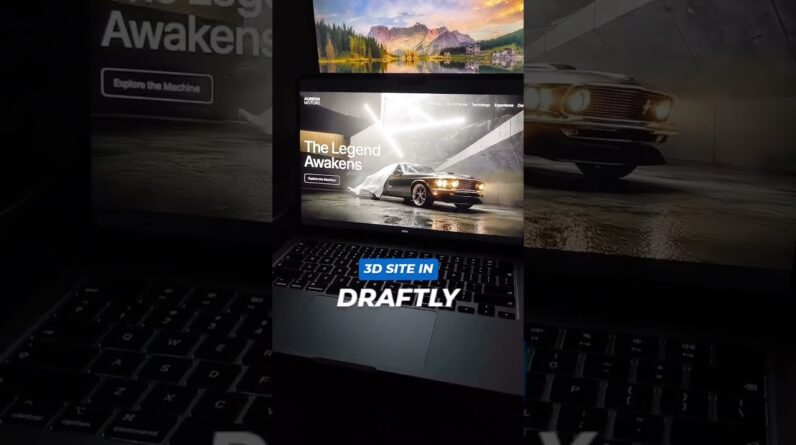




Learn how to build a website with AI, get it online, and update it using three different methods: Hostinger AI Builder, ChatGPT, and WordPress.
👉 Start building with Hostinger: https://ferdy.com/AIBuilder
Enter Coupon Code “FERDY” to get 10% extra discount
👉 Prompts and tutorial resources: https://ferdy.com
In this step-by-step tutorial, I build three websites for the same photography business so you can compare the workflows and choose the one that suits you.
METHOD 1: HOSTINGER AI BUILDER
Describe your website, upload your photographs, and refine the design through a conversation. Create a full-screen slideshow, portfolio pages, and a masonry gallery, then publish your website to a custom domain.
METHOD 2: OPENAI CODEX ChatGPT
Build a custom website, improve it with screenshots and prompts, and get it online. Add animations, image transitions, and a gallery lightbox, then publish your updates.
METHOD 3: AI DESIGN TO WORDPRESS
Turn your design into a custom WordPress theme. Edit text and images, add portfolio projects, and set up a working contact form with Fluent Forms. This is especially useful when building websites for clients who want to manage their own content.
You’ll see the entire process, including how I improve the first AI-generated results, without manually writing the code.
Note: The HTML contact form in method two needs additional setup. The WordPress method includes a demonstrated, tested contact form.
Which method would you choose: AI Builder, Codex, or WordPress? Let me know in the comments!
This video is sponsored by Hostinger. The Hostinger link is an affiliate link, which means I may earn a commission at no extra cost to you.
Timestamps:
00:00 Three Ways to Build a Website with AI
01:25 Get Web Hosting and a Domain Name
03:34 Method 1: Hostinger AI Builder
04:30 Write Your First Website Prompt
05:49 Add Reference Screenshots and Photos
07:30 Review the First AI Website
09:24 Create a Fullscreen Hero Slideshow
10:28 Add Portfolio Projects and Edit Text
12:47 Publish Your Website and Connect a Domain
14:53 Add a Masonry Photo Gallery
16:35 Preview the Finished Website on Mobile
17:53 Method 2: Build a Website with Codex
18:54 Set Up Codex and Your Project Folder
20:48 Improve Your Prompt and Generate the Website
23:07 Get Your Codex Website Online
25:32 Refine the Header and Hero Slideshow
27:18 Add a Gallery with a Lightbox
28:20 Improve the Design with Screenshot References
32:18 Add Animations with a Better AI Prompt
35:24 Method 3: Turn Your AI Website into WordPress
38:22 Prepare WordPress, ACF, and Fluent Forms
39:28 Convert Your Website into a WordPress Theme
41:04 Deploy Your WordPress Website
41:44 Edit Website Content Without a Page Builder
43:17 Add and Reorder Portfolio Projects
44:12 Set Up and Test Your Contact Form
46:26 SEO and Legal Page Suggestions
47:09 Recap: Which Website Method Is Right for You?
#AIWebsiteBuilder #WebDesign #WordPress