


👉 Try Webflow AI Site Builder Now
https://try.webflow.com/victorflow-one?sub1=ai-site-builder
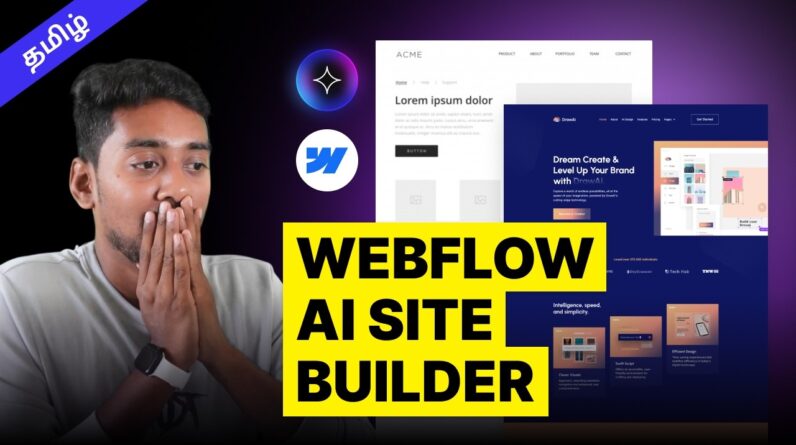
In this Tamil video tutorial, we explore how to build a complete website using Webflow’s AI Site Builder, currently in beta. This is part of our AI website building series—previously, we tried Relume AI.
Today, we’ll go step-by-step through Webflow’s AI builder: from writing prompts and choosing styles to customizing sections and generating extra pages like “About.”
Learn how to:
Use Webflow’s AI builder to launch a full website in minutes
Set brand colors, fonts, layout styles, and more
Generate pages using AI with full manual control
Style buttons, cards, and layouts easily
Preview and edit each section without code
Work with backups and design flexibly
This Tamil-focused walkthrough is perfect for creators, entrepreneurs, and freelancers looking to explore how AI can simplify web design using Webflow. You don’t need to be a developer—this is a no-code solution powered by AI.
🔗 My Key Links:
LinkedIn → https://www.linkedin.com/in/ansifdeveloper/
Instagram → https://www.instagram.com/ansif_developer_/
Website → https://www.victorflow.com/
Email → info@victorflow.com
Book a Call → https://calendly.com/victorflow/30min
Timestamps:
00:00 – Intro
00:22 – Trying Webflow AI Site Builder
01:01 – Basic Business Info & Prompt Input
01:07 – Choosing Brand Styles & Colors
03:00 – Typography & Layout Customization
04:15 – Buttons, Cards, and Section Styling
05:32 – Starting the Build Process
05:57 – Previewing the AI-generated Homepage
09:25 – Creating an “About” Page with AI
10:14 – Swapping Layouts Using AI
11:39 – Creating & Managing Backups
12:43 – Final Thoughts on AI Website Building
#WebflowAI #TamilWebDesign #webflowtutorial #aitools #webdesigntamil #BuildWithWebflow #WebflowAIBuilder #tamiltech #WebflowBeta #WebsiteBuilderAI #nocode #WebflowTamil