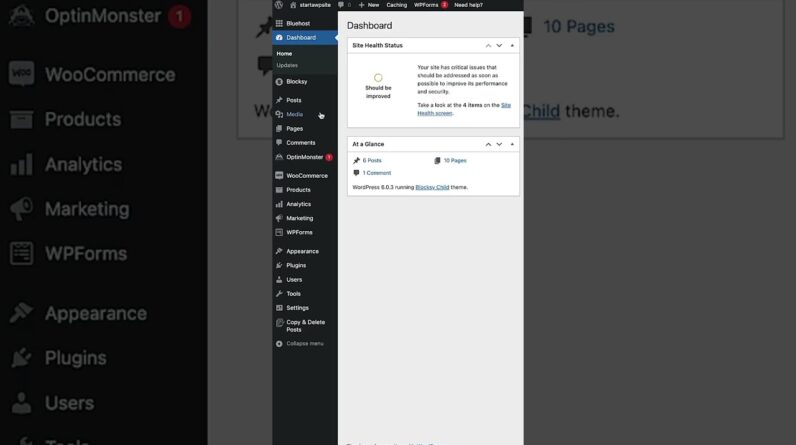



Discover how to build and customize a WordPress website using themes, plugins, pages, and essential settings.
👉Get MAX Hostinger Discount ➜ https://www.hostg.xyz/SHJaW
💥HOSTINGER COUPON CODE: SITESTARTERS💥
☝️☝️ USE THE CODE ABOVE TO GET ADDITIONAL 10% DISCOUNT
Check out our featured video:
🔗Hostinger Review – https://www.youtube.com/watch?v=I15kODV5gMs
🔗WordPress Review – https://youtu.be/1OKqSx8Ncww
🔗Hostinger WordPress Tutorial – https://www.youtube.com/watch?v=-ebqIt1xekE
🔹 Our Commitment to Independence🔹
HME Technology Corp maintains affiliate relationships with some of the products reviewed. While we earn a percentage of the sale if you click our links (at no cost to you), our evaluations are never for sale. Brands often send us products for free, but we only recommend what actually works for you.
💼 *Business Inquiries:*
For sponsorships and collaborations, please contact us at 👉 partnerships@consumercompass.net
Timestamp Sections:
00:00 Intro
00:43 Getting Started
02:40 Add Plugins
05:10 Clear Out The Canvas
05:59 Website Structure
06:48 Add Container
07:12 Edit Container
07:38 Add Banner Image
08:25 Heading Text
09:27 Add Another Heading Banner
10:37 Add New Products
13:09 Add Main Menu
14:35 Place Menu on Site
16:33 Add Products to Our Site
17:51 Edit Product Collection Section
19:14 Fix Category Pages
23:00 Place Footer Menu on Site
24:12 Setting Up Store Details
25:16 Setting Up Shipping Details
25:55 Setting Up Payment Details
27:01 Outro
————————————————
Welcome to our WordPress Tutorial!
————————————————
In this video, I’ll guide you step by step on how to build your own website from scratch using WordPress, hosted by Bluehost. We’ll cover everything from setting up your hosting plan to installing WordPress and customizing your site, making it simple even if you’re a beginner. Bluehost is perfect for new or experienced site builders, offering an intuitive interface and reliable performance. And don’t miss the special discounts on Bluehost hosting in the description to make your website creation more budget-friendly. I’ll also show you how to create a site name, use a temporary domain, and navigate the dashboard to get started.
————————————————
Master Website Design with Elementor:
————————————————
Once your WordPress site is set up, we’ll dive into customizing it using Elementor, an easy-to-use, drag-and-drop website builder. Elementor offers various features to help design your site, including templates, layout options, and image settings. We’ll explore how to use the Elementor Header and Footer Builder for seamless navigation, adjust images for a professional look, and understand advanced styling tools. Even though I’ll use the basic version, I’ll also discuss Elementor Pro’s additional features like WooCommerce integration for e-commerce functionality, ideal for those wanting to sell products.
————————————————
Setting Up WooCommerce & Policies:
————————————————
If you plan to sell products, I’ll explain setting up WooCommerce, including configuring taxes, shipping zones, and payment methods like PayPal and Stripe. We’ll go through setting flat rates, adding free shipping, and managing local pickup options. You’ll learn how to customize policies, like returns and privacy, using Elementor, ensuring your store is professional and compliant. By the end, you’ll be equipped to build a beautiful and functional site. Check out the affiliate link for Bluehost discounts, and don’t forget to subscribe for more web-building tips!
Hope you enjoyed my WordPress Tutorial | A Simple Step-by-Step Guide Anyone Can Follow Video.