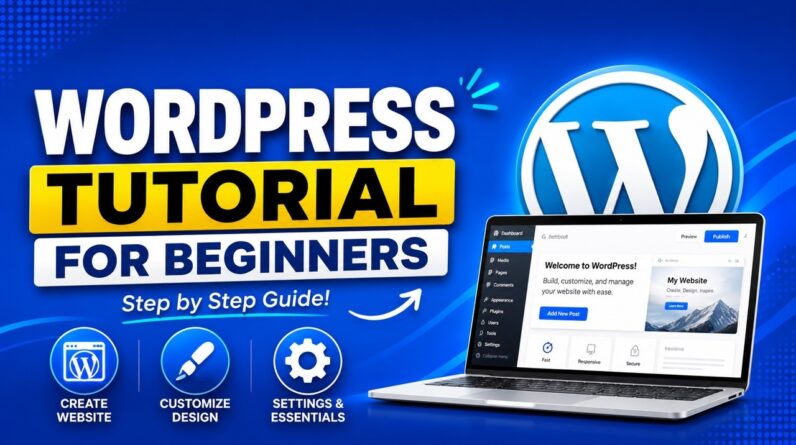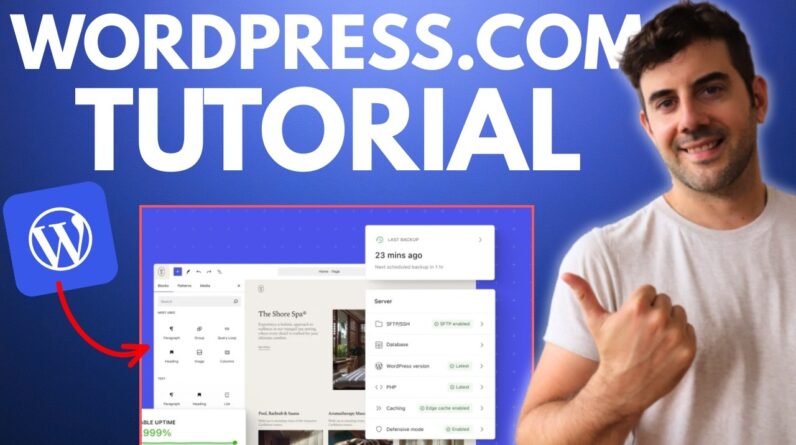



Learn how to create a professional website using Bluehost and WordPress with this easy, step-by-step tutorial for all skill levels.
👉 Get Bluehost ➜ https://bit.ly/4hgolgF
💥EXCLUSIVE DISCOUNT AUTOMATICALLY APPLIED💥
Check out our featured videos:
🔗 Bluehost Review: https://www.youtube.com/watch?v=CcWgPkMFtBQ
🔗 Bluehost Short Tutorial: https://www.youtube.com/watch?v=GystH1DSnZs
Learn how to create a professional website using Bluehost and WordPress with this easy, step-by-step tutorial for all skill levels.
Timestamp Sections:
00:00 Intro
00:35 Add Site
01:17 Add New Plugins
02:01 Create Page with Elementor
03:37 Add a Photo
05:50 Customize Photo
06:00 Heading Text
08:28 Create New Pages
09:30 Create New Menu
10:50 Add Navigation Menu
13:13 Add Gallery
14:18 Add New Products
18:20 Add Products to Our Site
19:30 Add Popular Products
21:32 Add Your Product to Site Menu
23:48 Setting Up Your Store Details
26:22 Setting Up Shipping Details
27:31 Setting Up Payment Details
28:34 Setting Up Policy Details
29:00 Outro
————————————————
Welcome to our WordPress Tutorial!
————————————————
In this video, I’ll guide you step by step on how to build your own website from scratch using WordPress, hosted by Bluehost. We’ll cover everything from setting up your hosting plan to installing WordPress and customizing your site, making it simple even if you’re a beginner. Bluehost is perfect for new or experienced site builders, offering an intuitive interface and reliable performance. And don’t miss the special discounts on Bluehost hosting in the description to make your website creation more budget-friendly. I’ll also show you how to create a site name, use a temporary domain, and navigate the dashboard to get started.
————————————————
Master Website Design with Elementor:
————————————————
Once your WordPress site is set up, we’ll dive into customizing it using Elementor, an easy-to-use, drag-and-drop website builder. Elementor offers various features to help design your site, including templates, layout options, and image settings. We’ll explore how to use the Elementor Header and Footer Builder for seamless navigation, adjust images for a professional look, and understand advanced styling tools. Even though I’ll use the basic version, I’ll also discuss Elementor Pro’s additional features like WooCommerce integration for e-commerce functionality, ideal for those wanting to sell products.
————————————————
Setting Up WooCommerce & Policies:
————————————————
If you plan to sell products, I’ll explain setting up WooCommerce, including configuring taxes, shipping zones, and payment methods like PayPal and Stripe. We’ll go through setting flat rates, adding free shipping, and managing local pickup options. You’ll learn how to customize policies, like returns and privacy, using Elementor, ensuring your store is professional and compliant. By the end, you’ll be equipped to build a beautiful and functional site. Check out the affiliate link for Bluehost discounts, and don’t forget to subscribe for more web-building tips!
Hope you enjoyed my WordPress Tutorial: How to Build a Website With WordPress Video.