




Key Takeaways
- An XML sitemap should include the canonical URLs you want search engines to crawl and index, not every URL on your site.
- Dynamic sitemaps are the best choice for most websites because they update automatically as pages are added, removed, redirected, or changed.
- Keep <lastmod> dates accurate and reserve them for meaningful page updates so search engines learn to trust the signal.
- Google ignores the <changefreq> and <priority> tags, so there’s no SEO benefit to including them.
- Google Search Console can turn your sitemap into a diagnostic tool by showing which submitted URLs are being discovered and indexed.
Most websites have an XML sitemap. A lot of those sitemaps aren’t optimized, though.
That means site owners are missing a golden opportunity to improve their SEO and gain an edge over competing brands.
Your sitemap gives search engines a roadmap to the content you want them to find. When that roadmap is full of redirects, non-canonical URLs, or outdated content, search engines have a tougher time doing their jobs.
This forces them to spend time sorting through URLs you don’t really want them to index.
A well-optimized sitemap, on the other hand, gives search engines a more direct path to your most important content. It helps new and updated pages get discovered sooner and keeps search engines focused on the pages you most want them to crawl and index.
In this guide, we’ll look at what belongs in your sitemap and what doesn’t. I’ll also show you how to structure your sitemap to help search engines crawl your site more efficiently.
What Is an XML Sitemap?
In simple terms, an XML sitemap is a file that lists the URLs you want search engines to know about. Think of it as a table of contents that helps crawlers understand what content is available on your site.
(“XML” stands for “Extensible Markup Language,” a way of structuring and sharing information.)
A sitemap gives crawlers a direct path to important URLs, so they don’t have to rely entirely on links to discover them. This is especially useful when important pages sit deep within your site or aren’t well connected through your internal linking.
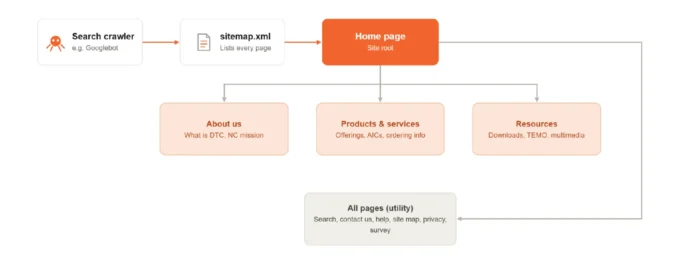
AI and LLM crawlers can also reference your sitemaps when discovering URLs, turning an optimized sitemap into yet another way to help your content get discovered by AI platforms alongside Google and Bing.
A basic sitemap entry only needs to provide a few useful pieces of information:
- Where the page is located: <loc>https://www.example.com/mypage</loc>
- When it was last significantly updated: <lastmod>2026-09-30</lastmod>
You may have seen <changefreq> and <priority> in older sitemap examples. Google ignores both, so there’s no reason to include them these days.
Having a sitemap is only the starting point. If it’s filled with outdated or redirected URLs, you’re not getting nearly as much value from it as you could. So, let’s look at how to optimize it.
Dynamic vs. Static Sitemaps: Which Should You Use?
Two types of sitemaps exist today: static and dynamic.
A static sitemap captures the URLs on your website at a particular point in time. The problem with this is that your site doesn’t stand still.
Publish a new page, remove an old one, change a URL, or redirect a page, and your static sitemap becomes outdated. That is, unless you regenerate it each time you make a change.
However, a dynamic sitemap can keep up with these changes. It automatically updates as your site evolves, so search engines always get the most accurate view of the URLs currently live on your site. For most websites, this is the better choice.
You don’t need to be an SEO expert to build a dynamic sitemap yourself. Many content management systems and website platforms can generate them for you.
WordPress users can use plugins like Yoast SEO or Rank Math, while platforms like Shopify and Squarespace have built-in sitemap functionality.

Source link: https://yoast.com/app/uploads/2024/12/viewsitemaps-768×163.jpg
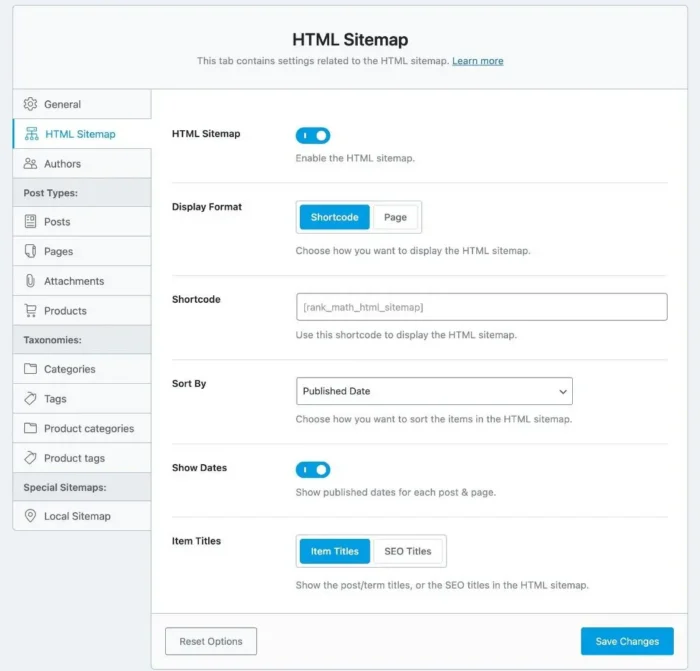
Source https://rankmath.com/wp-content/uploads/2022/11/html-sitemap-options.jpg
If you have a custom-built site, your developer can create a script that automatically generates and updates your sitemap. Dynamic sitemap generator tools are another option.
Static sitemaps still have their uses.
SEO tools like Screaming Frog can crawl your website and generate a static sitemap that captures your current URLs. That makes it useful for auditing your site and diagnosing sitemap problems.
That said, I wouldn’t use that static file as your ongoing production sitemap. Stick with a dynamic sitemap that can keep up with your website as it changes.
What Tags Should Your XML Sitemap Include?
A key part of sitemap optimization is making sure the information you give search engines is actually useful. In the case of tags, you don’t need to give them much.
For a standard XML sitemap, there are two tags I’d pay the most attention to:
<loc>: The page URL
This is the only required tag. It tells search engines where to find the page and must contain the complete canonical URL you want indexed.
Be precise here. The URL should use the correct protocol (http or https) and match whether your URLs use www. So, if the canonical version of a page is https://www.example.com/page, that’s exactly what should appear in your sitemap.
<lastmod>: When the page was last meaningfully updated
This tag is optional, but it can be useful. Google may use an accurate <lastmod> date to determine when a page changed and whether it should crawl that page again.
The key word here is accurate.
Don’t update <lastmod> just because the copyright year changed or you made a minor cosmetic tweak. Google says the date should reflect a significant update to the page, like a change to its primary content or structured data.
If your <lastmod> dates are consistently inaccurate, Google may stop using them as a crawl signal.
Again, you might also come across <changefreq> and <priority> in older sitemap examples. You can leave them out. Google ignores them.
Neither tag tells Google how often to crawl a URL or convince it that one of your pages deserves more attention. So focus elsewhere.
For most sites, keeping your sitemap simple and accurate is the best approach.
What Pages Should Be in Your XML Sitemap?
While it may go against your every instinct, don’t make your XML sitemap a list of every URL on your website. Instead, it should list only the pages you want search engines to crawl and index.
This distinction is an important one for sitemap optimization. Filling your sitemap with URLs that redirect or return errors wastes crawl resources and sends conflicting signals about which pages you actually consider important.
Here’s what you should leave out:
- 301 redirects: Include the final destination URL instead. There’s no reason to send a crawler to one URL just to redirect it to another.
- 404 and 410 pages: These URLs no longer contain the content you want indexed. So, they don’t belong in your sitemap.
- Non-canonical URLs: If a page’s canonical tag points to another URL, put the canonical URL in your sitemap instead.
- Noindex pages: Including these pages sends search engines dueling messages. Your sitemap says, “Here’s a page I want indexed,” while the noindex directive says the opposite.
- Paginated URLs: You can generally leave these out unless the individual pages are intended to serve as search landing pages.
- Parameter URLs: Filters, sorting options, session parameters, and similar functions can create numerous variations of essentially the same URL. Unless a variation has independent SEO value, leave it out.
- Utility pages: Login and account pages are built for users who are already on your site. They’re not going to attract search traffic. Other pages, such as privacy policies, may be necessary for your business but probably don’t need to be on your sitemap.
Your goal isn’t to build the biggest possible sitemap. It’s to give search engines a clean and credible list of the URLs you genuinely want to appear in search results.
Which Sitemap Type Is Best for SEO?
For most websites, a standard XML sitemap is all you need. It lists the canonical URLs you want indexed, and it includes an accurate <lastmod> date when appropriate.
That said, there are other sitemap formats that make sense for certain websites. They include:
Sitemap Index File
Once your sitemap reaches 50,000 URLs or 50 MB in compressed size, you’ll need to split it into multiple files. A sitemap index is a single file that points search engines to each of these individual sitemap files.
I recommend organizing them by content type and giving them descriptive names, such as /sitemap-blog.xml or /sitemap-products-mens.xml. That makes it easier to analyze by content type in Google Search Console.
Image Sitemap
You can include image information in your standard XML sitemap rather than creating a separate one.
For most sites, though, structured data like ImageObject gives search engines more information about an image and its relationship to the page.
Video Sitemap
If video’s a significant part of your site, a dedicated video sitemap gives you a way to provide search engines with additional information about each video. You can also just add video tags to your existing sitemap.
Google News Sitemap
This is specifically for news publishers. It should only contain URLs for articles published within the last two days.
Older URLs should be removed from the News sitemap, though they can stay part of your regular sitemap.
HTML Sitemaps
These sitemaps are a little different. They’re pages built to help people navigate a website, not files created to direct search engine crawlers.
If your navigation and internal linking already make your content easy to find, an HTML sitemap isn’t likely doing much for you. Check to see if people actually use yours before giving it a prominent sitewide link.
For most sites, start with a standard XML sitemap. Add specialized sitemap formats only when your content calls for them.
How to Submit and Validate Your XML Sitemap
Now that you’ve optimized your sitemap, it’s time to put it to work. The next step is to make sure search engines can find and process it so they stay up to date as your site changes.
Submit Your Sitemap to Google Search Console
Let’s start with Google Search Console. If you haven’t connected your site yet, follow Google’s instructions to add and verify your property.
Once you’re set up, select your website in Search Console and click “Sitemaps” under the Indexing section.
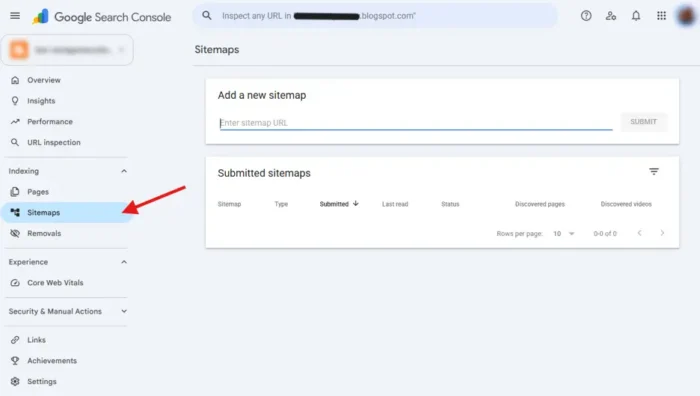
.Enter your sitemap URL under “Add a new sitemap” and click “Submit.”
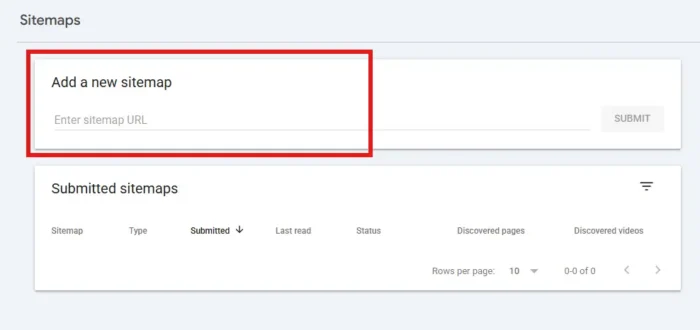
Don’t move on once you’ve submitted it, however. Check the Sitemaps report to see when Google last read the file and whether it encountered any processing errors.
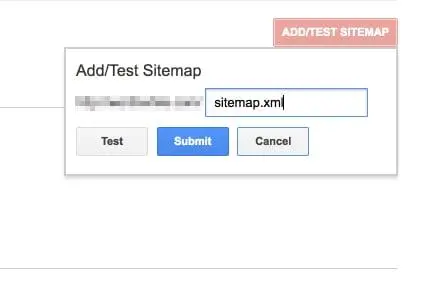
Fix any problems you find and resubmit the sitemap once you’re done.
Remember, submitting a sitemap doesn’t guarantee Google will crawl or index every URL in it. But it gives Google another way to discover the pages you want ranked in search.
Add Your Sitemap to Robots.txt
I also recommend referencing your sitemap in your robots.txt file.
All major search engines including Google and Bing support the sitemap field, which gives crawlers that read the file a direct path to your sitemap.
Just add a line like this:
Sitemap: https://www.example.com/sitemap.xml
Use the complete URL, including the protocol and domain. If you use a sitemap index, point crawlers to that file instead.
Submit Your Sitemap to Bing
Google dominates online searches, but Bing is still worth a few minutes of your time. According to Statcounter, Bing accounted for about 4.5 percent of worldwide search-engine traffic in August 2026.
To submit your sitemap to Bing, sign in to Bing Webmaster Tools. Select your verified site and open the Sitemaps section. Click “Submit sitemaps,” enter the URL, and submit.
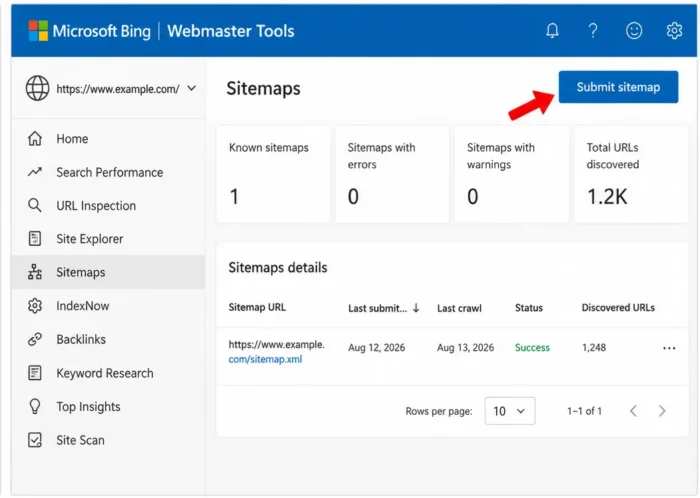
You can then monitor its processing status and review any errors or warnings Bing gives you.
Use IndexNow for Faster Updates
You don’t always have to wait for search engines to re-crawl your site when something changes. IndexNow is a free, open-source protocol that lets you notify Bing and other participating search engines when a URL’s been added, updated, or removed.
This makes IndexNow particularly useful if you change content frequently on your site. Many CMS platforms and SEO tools can automate the process through Rank Math or Yoast SEO. Developers can also use IndexNow directly.
This doesn’t replace your XML sitemap. Think of your sitemap as your complete, ongoing URL inventory, while IndexNow alerts participating search engines to changes as they happen.
Using Sitemap Reporting to Diagnose Indexing Issues
Once you’ve submitted your sitemap to Google Search Console, the tool continues to provide valuable feedback. In fact, its reporting can help you identify indexing problems and figure out exactly why they’re happening.
Start with the sitemap’s submission status. A green “Success” means Google processed your sitemap. But if you see an error instead, click through to find out what went wrong.
Then correct the problem and resubmit.
From there, pay attention to how many URLs Google discovers from your sitemap versus how many ultimately make it into its index. If there’s a sizeable gap, dig deeper.
Some exclusions are perfectly normal. A large number can mean you have technical issues or Google doesn’t consider some of your pages suitable for indexing.
This is why I recommend using descriptive names if you split your site into multiple sitemaps. Instead of sitemap-1.xml and sitemap-2.xml, use names like sitemap-blog.xml, sitemap-products.xml, and so on.
If most of the URLs that were excluded from Google’s index come from the products sitemap, for instance, you know right away where to focus your investigation.
There’s one more thing to keep in mind for larger sites. Google Search Console limits sitemap reports to 1,000 URLs. So if you need to inspect every affected URL, divide your sitemaps into groups of 1,000 instead of maxing them out at 50,000 URLs.
This means you’ll have to create and manage more sitemap files, so reserve this approach for sites that genuinely need the extra visibility.
Use Ubersuggest to Find Sitemap Errors
Even after you’ve optimized your sitemap, you still need to check it periodically for problems. Ubersuggest’s Site Audit can help you find sitemap-related issues while giving you a wider look at the health of your website.
Here’s how you can use Ubersuggest to check for sitemap errors:
Step #1: Enter your domain name and click “Search.”

Step #2: Click “Site Audit” in the left sidebar.
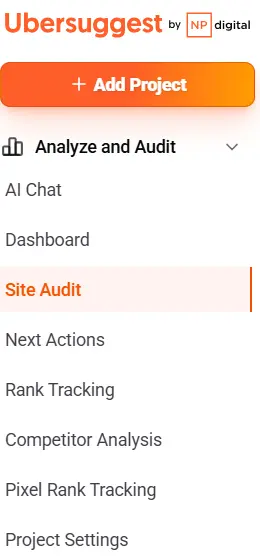
Step #3: Review your Site Audit results.
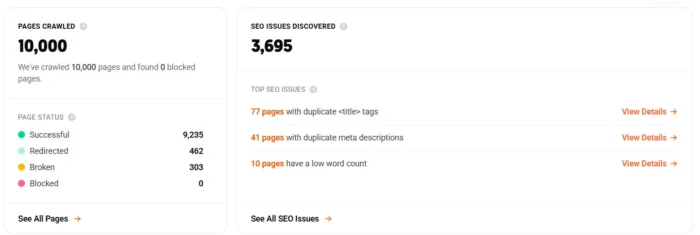
To find issues with your sitemap, review the data associated with page status, SEO issues, critical errors, warnings, and recommendations.
For example, when you click on Critical Errors, here’s what you see for my website:
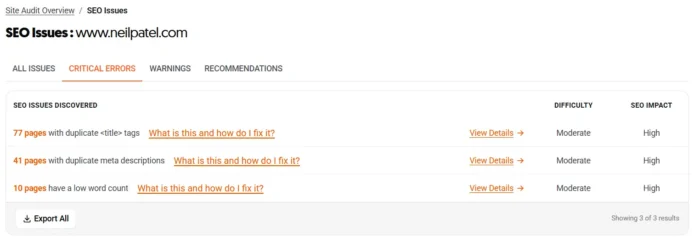
There are no issues with my sitemap, but if there were, here’s where you’d find more information. Along with the issue itself, you’ll see a “Learn More” button that provides additional information.
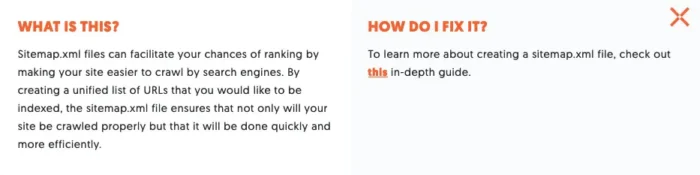
You can then follow the prompts for more guidance on how to fix the error.
Site Audit also gives you a broader look at your website’s technical health, so you can check for sitemap problems alongside other SEO issues. That makes it useful as a regular check-in rather than something you run once and forget about.
Use Ubersuggest to check the health of your sitemap regularly. Running an audit once or twice a month only takes a few minutes and can help you catch problems as your site changes.
FAQs
How do I decide which URLs to include in an XML sitemap?
Include the canonical URLs you want search engines to crawl and index. Leave out redirects, error pages, noindex pages, and URLs that point to a page other than their canonical version. Think of your sitemap as a focused list of the pages you want to show up in search.
Will updating sitemap structure speed up indexing for recently changed pages?
It can help search engines discover changes, but it doesn’t guarantee faster indexing. Keep your sitemap accurate and use <lastmod> to identify pages that have been meaningfully updated. Google can use an accurate <lastmod> date when deciding whether to crawl a URL again.
Your sitemap URLs should agree with your canonical tags. In most cases, leave out paginated and parameter-based URLs unless you specifically want those pages indexed. If your sitemap points Google toward one URL while your canonical tag points somewhere else, you’re sending conflicting signals.
When is it appropriate to add image or video entries to a sitemap?
Use them when images or videos are an important part of what you want people to discover in search. You can add image or video information to an existing XML sitemap instead of creating separate files for each.
What common sitemap errors cause search engines to skip the file?
Start by checking that your sitemap is accessible and properly formatted. Broken URLs, invalid XML, incorrect URL formatting, or a file that exceeds sitemap size limits can cause problems. After submitting it, check Google Search Console for processing errors so you know what needs to be fixed.
{
“@context”: “https://schema.org”,
“@type”: “FAQPage”,
“mainEntity”: [
{
“@type”: “Question”,
“name”: “How do I decide which URLs to include in an XML sitemap?”,
“acceptedAnswer”: {
“@type”: “Answer”,
“text”: “
Include the canonical URLs you want search engines to crawl and index. Leave out redirects, error pages, noindex pages, and URLs that point to a page other than their canonical version. Think of your sitemap as a focused list of the pages you want to show up in search.
”
}
}
, {
“@type”: “Question”,
“name”: “Will updating sitemap structure speed up indexing for recently changed pages? “,
“acceptedAnswer”: {
“@type”: “Answer”,
“text”: “
It can help search engines discover changes, but it doesn’t guarantee faster indexing. Keep your sitemap accurate and use <lastmod> to identify pages that have been meaningfully updated. Google can use an accurate <lastmod> date when deciding whether to crawl a URL again.
”
}
}
, {
“@type”: “Question”,
“name”: “How should I handle canonical tags, paginated content, and query parameters?”,
“acceptedAnswer”: {
“@type”: “Answer”,
“text”: “
Your sitemap URLs should agree with your canonical tags. In most cases, leave out paginated and parameter-based URLs unless you specifically want those pages indexed. If your sitemap points Google toward one URL while your canonical tag points somewhere else, you’re sending conflicting signals.
”
}
}
, {
“@type”: “Question”,
“name”: “When is it appropriate to add image or video entries to a sitemap? “,
“acceptedAnswer”: {
“@type”: “Answer”,
“text”: “
Use them when images or videos are an important part of what you want people to discover in search. You can add image or video information to an existing XML sitemap instead of creating separate files for each.
”
}
}
, {
“@type”: “Question”,
“name”: “What common sitemap errors cause search engines to skip the file?”,
“acceptedAnswer”: {
“@type”: “Answer”,
“text”: “
Start by checking that your sitemap is accessible and properly formatted. Broken URLs, invalid XML, incorrect URL formatting, or a file that exceeds sitemap size limits can cause problems. After submitting it, check Google Search Console for processing errors so you know what needs to be fixed.
”
}
}
]
}
Conclusion
An XML sitemap is most useful when treated as something with marketing value and not just a checkbox on your technical SEO to-do list.
Good XML sitemap optimization gives search engines a clear picture of the pages you want them to crawl and index. It also means keeping your <lastmod> dates accurate so Google trusts them when deciding what may need to be crawled again.
Your sitemap can also help you find problems. Google Search Console reporting lets you compare the URLs you’ve submitted with what Google has actually indexed, which gives you a diagnostic starting point when something doesn’t look right.
Remember: Your sitemap is just one part of your broader technical SEO strategy. If you’d like a trusted expert to help you find and fix technical SEO issues, NP Digital can help.
