



📖 Get My Bluehost Course for Free: https://academy.dotcom.builders
🎓 Join my Academy (Free): https://academy.dotcom.builders
For Business Inquiries: ben@dotcom.builders
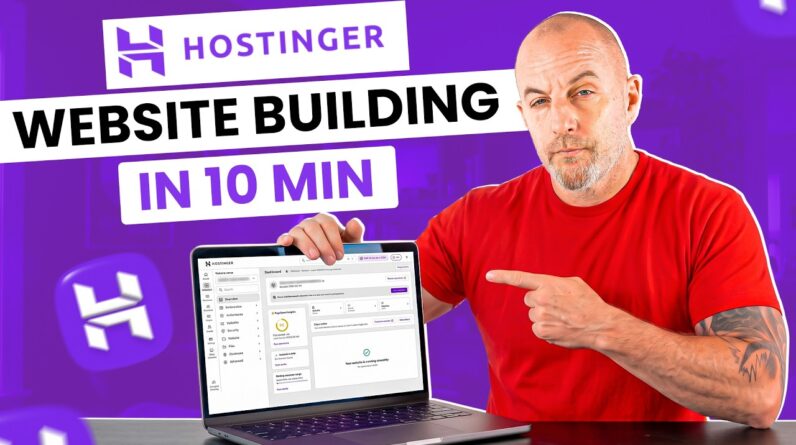
If you want to add a blog in Hostinger Website Builder or learn how to start a blog in Hostinger Website Builder, this step-by-step tutorial is for you. In this guide, you’ll discover exactly how to add a blog in Hostinger Website Builder, customize your posts, use AI to write articles, and publish your first blog post the right way. Whether you’re building your first website or expanding an existing one, this video will help you understand the entire process with clear explanations and practical examples.
In this tutorial, I’ll walk you through everything from enabling the blog feature, deleting default posts, creating a clean layout, writing and formatting your content, adding images, editing blog settings, and publishing your brand-new article. If you’re working with Hostinger Website Builder, this is the simplest way to launch your blog professionally.
By repeating the steps shown in this video, you’ll master how to add a blog in Hostinger Website Builder and optimize it for future content creation. This method works whether you’re starting a personal blog, a business blog, a niche website, or a content-driven project.
⭐ What You’ll Learn in This Video
How to add a blog in Hostinger Website Builder
How to start a blog inside Hostinger
How to enable the blog feature in Hostinger Builder
How to create, edit, and format a blog post
How to use Hostinger AI to write automatic articles
How to add images, headings, formatting & layout
How to edit the blog header, background, author, categories & settings
How to publish your first blog post properly
How to delete default Hostinger blog posts
How to manage draft, scheduled and published articles
Whether you’re a beginner or an advanced Hostinger user, this video gives you everything you need to launch a beautiful and functional blog in minutes.