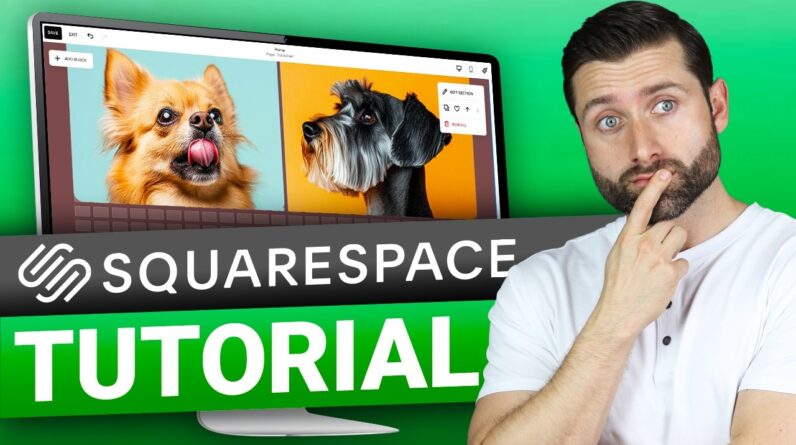



Squarespace Tutorial: Learn how to build a stunning website in just 13 minutes with this step-by-step guide.
💥 Affiliate Links Included 👇
👉 Get Squarespace ➜ https://bit.ly/4cUlYjg
🔹 Our Commitment to Independence🔹
HME Technology Corp maintains affiliate relationships with some of the products reviewed. While we earn a percentage of the sale if you click our links (at no cost to you), our evaluations are never for sale. Brands often send us products for free, but we only recommend what actually works for you.
💼 *Business Inquiries:*
For sponsorships and collaborations, please contact us at 👉 partnerships@valuewatch.org
────────────────────────────────────────────
AI Sales and Customer Service Chatbot ➜ https://bit.ly/hmesave
90% DISCOUNT AUTOMATICALLY APPLIED
Timestamps Section:
00:00 Intro
00:53 Choose Templates
01:52 Edit Template
03:29 Change Text
04:13 Change Photo
05:43 Text Box
06:29 Lines
07:39 Add New Section
08:46 Add New Pages
09:23 Edit Header
10:56 Edit Footer
12:09 Get Domain Name
12:58 Final Thoughts
13:27 Outro
————————————————
Build a Website in 15 Minutes with Squarespace
————————————————
Building a website might sound overwhelming, but with Squarespace, you can have a sleek, professional-looking site up and running in just 15 minutes no coding required! Whether you’re starting a blog, setting up a portfolio, or launching a business, this step-by-step guide will help you create a stunning website effortlessly. Squarespace offers a 14-day free trial, so you can explore its features without commitment. When you’re ready, check out the link in the description for the best deal on a paid plan.
————————————————
Customizing Your Squarespace Website
————————————————
After selecting a template, you can easily edit your site using Squarespace’s drag-and-drop editor. Click on any text to edit it instantly, replace images by dragging in your own, and adjust colors to match your brand. Sections are outlined in blue, making it easy to rearrange content. For a more structured design, use preset text sizes and headings to maintain consistency. Want to see how your site looks on mobile? Click the mobile view icon, and Squarespace will automatically adjust your design.
————————————————
Adding Final Touches & Extra Features
————————————————
To enhance your site, you can add new sections, blog posts, and visual elements. Lines can be used to improve readability, and additional sections can be inserted with just a click. If the color options don’t appear, go to “Edit Section” “Colors” to fine-tune your palette. Finally, preview your site and make final adjustments before publishing. With these easy steps, you’ll have a professional website ready to launch in no time!
Hope you enjoyed my Squarespace Tutorial | Launch Your Site in 12 Minutes! (Quick Guide) Video.